Block trackers and ads on your Mac and iPhone with one-click Block Presets
Traceptor ships curated Block Presets — Ads, Tracking, Telemetry, Social, Malware. One toggle in Access Control and matching hosts get a TCP RST before TLS. Honest caveat: YouTube in-stream ads still get through, but everything tracking you across apps doesn’t.
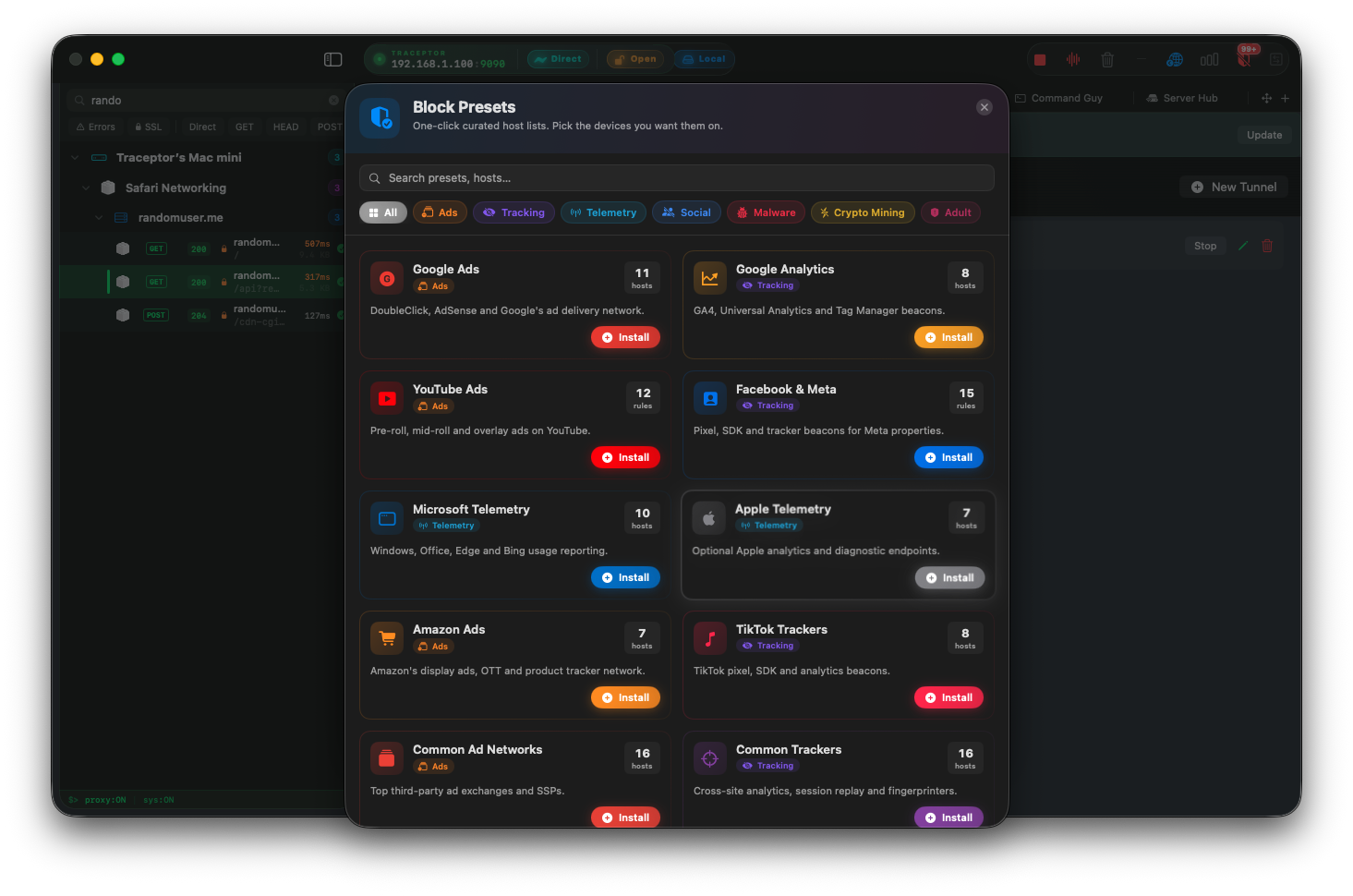
Every modern app ships with a small fleet of tracking SDKs. Mixpanel, Amplitude, Adjust, AppsFlyer, Branch, Segment, Sentry, Crashlytics, LaunchDarkly — tap by tap, your activity is sent off to half a dozen vendors. You can’t disable most of them in the app’s settings, because most apps don’t expose a setting. The right place to block this stuff is the network layer, on the device, before the request leaves the building. Traceptor does exactly that with Block Presets, and because it can act as the proxy for your iPhone over Wi‑Fi, the same blocking applies on your phone too — no App Store install, no profile-installer-installer nonsense.
What Block Presets actually are
Block Presets live under Settings ▸ Access Control in the Mac app. Each preset is a curated bundle of wildcard host patterns — *.doubleclick.net, *.mixpanel.com, *.adjust.com, and so on — tagged with a stable slug, an SF Symbol icon, and an accent color. Installing a preset appends its patterns to your blockedHostRules list. Uninstalling removes exactly the rules that preset added, no orphans left behind.
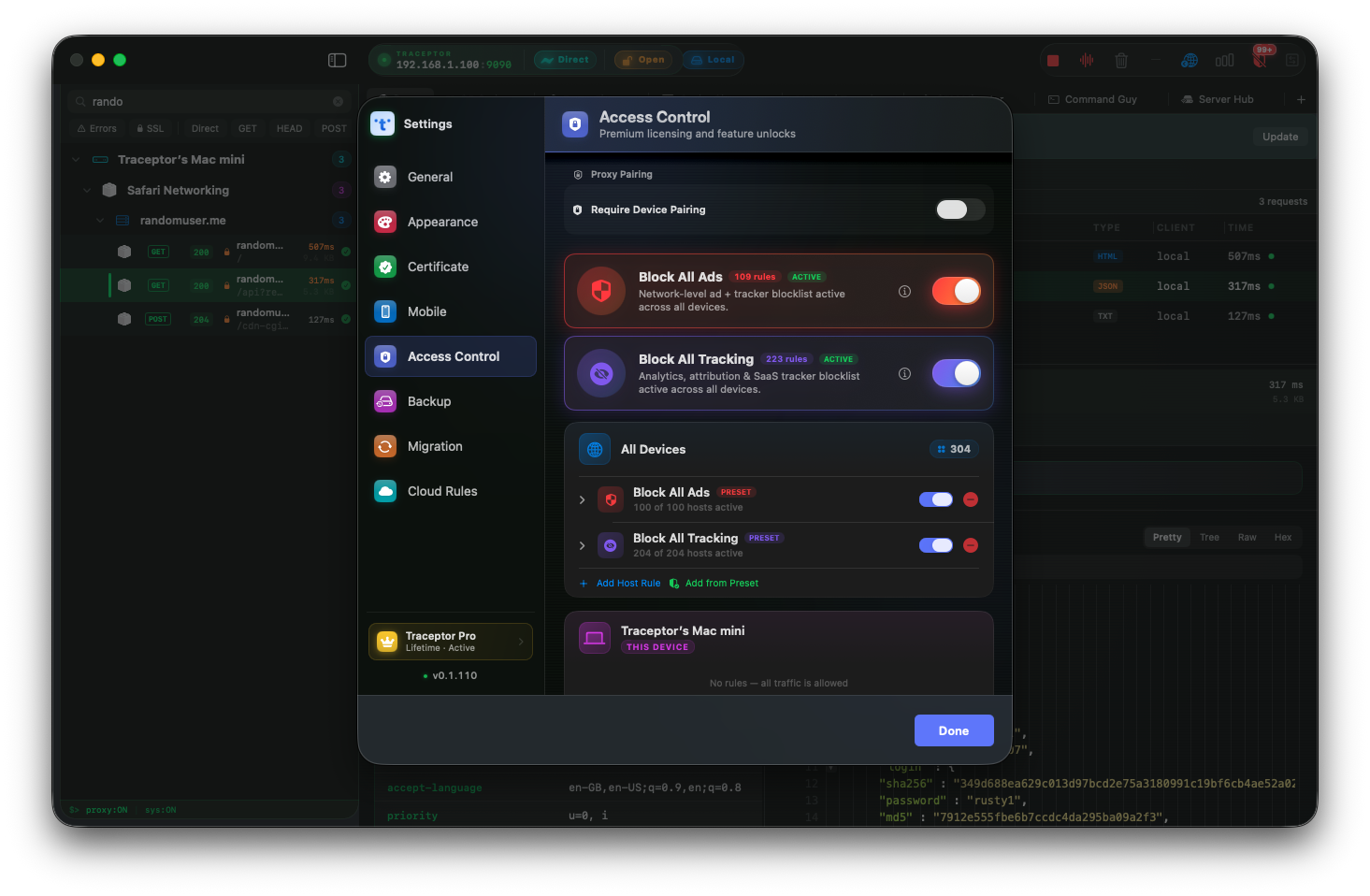
At the top of the pane sit two master toggles: Block All Ads and Block All Tracking. Each one’s an expandable card that shows what gets blocked and what might break. Below that, you can install individual presets surgically — useful when the master bundle is too aggressive for an app you actually use.
The honest part: what works, what doesn’t
This is the part most ad-blocker posts skip. Blocking ads on a phone is a partial win; blocking tracking is the comprehensive win, and tracking is the bigger problem.
- Works: third-party ad-network requests (creative fetches, impression beacons, click trackers), product analytics (Mixpanel, Amplitude, PostHog, Heap, Pendo), mobile attribution (AppsFlyer, Adjust, Branch, Kochava), session replay (FullStory, LogRocket, Hotjar, Clarity), customer-engagement SDKs (Braze, OneSignal, Iterable, Klaviyo), tag managers, telemetry, crash reporting, social pixels.
- Partial:YouTube’s in‑stream video ads. They’re mixed into the same HLS/DASH stream that carries the content, served from the same hostnames. URL-layer blocking can’t dissect a video stream — you’d need a player that understands ad markers, which is the territory of browser extensions and modified clients. Pre-roll requests to ad-tracking hosts do get blocked; the video ad itself usually plays. Same caveat for TikTok and Instagram in-feed ads.
- Doesn’t apply: first-party content from sites you use. Block Presets target advertising and tracking infrastructure, not legitimate app content.
If your goal is “never see a YouTube ad,” this isn’t the right tool — nothing at the network layer is. If your goal is “stop my phone from telling six analytics vendors what I’m tapping,” this is exactly the right tool.
How blocking actually works under the hood
When the proxy sees a CONNECT for a host that matches an active block rule, BlockedHostRulesBox in the proxy engine triggers a TCP RST— before the TLS handshake even starts. The client sees the same error it would for a dropped connection. Nothing upstream even knows the device tried. This is safer than TLS-level blocking, because some apps retry aggressively on cert errors but back off cleanly on a connection reset.
Every block is written to BlockEventStore with the host, the rule that matched, and the device it came from. Open the Block Report sheet from the Access Control header to see exactly how much chatter each rule stopped during this session.
Turn it on for your Mac in 3 steps
Open Settings → Access Control
⌘,) and switch to the Access Controltab. You’ll see three sections stacked vertically: All Devices, This Mac, and one per connected remote device.Toggle Block All Tracking
Browse normally — check the Block Report
Turn it on for your iPhone
This is the part that’s a pain with every other blocker — and pleasantly painless with Traceptor. The Mac proxy serves a friendly setup portal at http://<mac-ip>:9090/traceptor, and you can paste a PAC URL into iOS Wi-Fi settings instead of memorizing an IP and port.
- On Mac: open Mobile Setupin Traceptor — a QR code appears that encodes the portal URL.
- On iPhone: scan the QR with the camera. Safari opens the portal. Pick the Auto (PAC)tab — it’s labeled “EASIER” for a reason.
- Tap Download Certificate at the top of the portal, then go to Settings → General → VPN & Device Management and install Traceptor CA.
- Trust it: Settings → General → About → Certificate Trust Settings→ enable full trust for Traceptor CA.
- Set the proxy: Settings → Wi‑Fi → tap your network → Configure Proxy → Automatic, then paste the PAC URL from the portal’s one‑tap copy field. No server, no port.
Your iPhone’s requests now flow through the Mac, which means every Block Preset you turned on for All Devices applies to the phone too. Same blocklist, two devices, no second app.
The shipped preset catalog
Beyond the master Ads and Tracking bundles, the catalog includes individual presets you can install à la carte:
- Ad networks & exchanges:Google Ads, YouTube ads, Meta / Facebook, Amazon ads, plus a general “common ad networks” bundle.
- Product analytics: Mixpanel, Amplitude, PostHog, Heap, Pendo.
- Mobile attribution: AppsFlyer, Adjust, Branch, Kochava.
- Session replay: FullStory, LogRocket, Hotjar, Microsoft Clarity.
- Customer engagement: Braze, OneSignal, Iterable, Klaviyo.
- Feature flags: LaunchDarkly, Statsig, Split.io.
- Telemetry:Microsoft, Apple, plus “common trackers” and tag-manager / CDP bundles.
- Optional, separate:Malware, crypto miners, adult content. None of these are on by default — opt in if you want them.
Per-device scoping
Access Control isn’t one global blocklist — rules can be scoped per device. The three sections matter:
- All Devices— global block rules. Apply to every proxied client.
- This Mac— host rules plus blocked or hidden macOS apps (process-level). Traceptor attributes traffic back to a process via
DomainAppMapperandProcessResolver, so you can block an entire app from talking to the network even if its hosts aren’t in any preset. - Connected remote devices— one section per known iPhone or Android device. Rules here apply only to that device. Block Mixpanel on your iPhone, leave it alone on your Mac.
Watch out: the master Tracking bundle is aggressive
Custom rules — block anything you want
Beyond the presets, you can hand-add wildcard host rules to any section. Pattern format is the same wildcard syntax the presets use:
ruleSection:    This Mac
Pattern:    *.mixpanel.com
Action:     Block at CONNECT
Source:     Custom
Or add an app-level rule to This Macwith a bundle identifier — com.apple.Safari, com.spotify.client, any process — and pick Block (drop the connection) or Hide (let it run but keep it out of your traffic list).
Why this beats DNS-level blockers and VPN apps
- Per-host, not per-domain. Pattern rules like
*.doubleclick.netare surgical. DNS-level blockers tend to stop at a coarser granularity. - No subscription, no cloud.Block lists live on your Mac; your traffic doesn’t leave your network.
- You can see what was blocked.The Block Report shows exact hosts, rules, and counts. Most DNS blockers give you a top-N chart and that’s it.
- Per-device scoping built in. Block on your iPhone and leave the Mac alone, or vice versa, without standing up a second tool.
The pitch isn’t “never see another ad.” The pitch is “the apps on my phone stop reporting every tap to seven vendors.” That’s the win, and Block Presets makes it a one-toggle install.
Keep reading