Device Capture: mirror, record, and screenshot your iPhone inside Traceptor — no QuickTime needed
Traceptor's Device Capture tab mirrors any connected iPhone or iPad live on your Mac, records the screen to video, and grabs still snapshots — QuickTime-style, without leaving the app. AirPlay wireless or wired. Android via bundled adb.
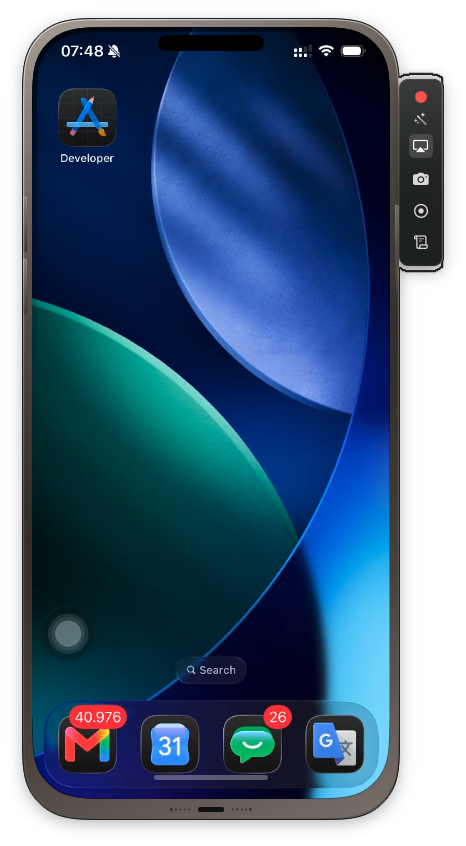
Every iOS developer knows the QuickTime drill: open QuickTime Player, go to File → New Movie Recording, click the dropdown next to the record button, pick your phone, wait. Then switch back to Xcode to check the console, switch back to QuickTime to record, switch back to Traceptor to see the network request that just failed. Device Captureends the app-switching. It’s a full mirror, record, and screenshot tool for iPhone and iPad — built directly into Traceptor, right next to the proxy traffic that caused the thing you’re looking at on screen.

Three things Device Capture does
The tab header says it plainly: MIRROR · RECORD · SNAPSHOT. Each one is independent — you can grab a screenshot without starting a recording, or keep a live mirror open all day while you work in the proxy view.
- Mirror — your device screen appears live in the Device Capture pane. Tap on your phone and it updates in real time. Useful for watching an animation, confirming a layout, or just keeping an eye on what the app is doing while you inspect the request in the adjacent panel.
- Record — start a video recording of the device screen. The recording captures everything on the display, saved to your Mac. No screen recording permission popups, no watermark, no time limit.
- Snapshot — grab a still image of the current device screen in one click. Good for attaching to bug reports, Slack threads, or design reviews without reaching for Cmd+Shift+4.
Connecting a device
Open the Device Capture tab. The left panel shows every device Traceptor can see under a Devices header. Select one and the mirror starts immediately in the main pane.
AirPlay Wireless
iPhones and iPads appear over AirPlay when they’re on the same Wi-Fi as your Mac. No cable, no pairing flow — the device just shows up in the list. Tap it and you’re mirroring wirelessly. This is the fastest way to start for day-to-day use.
Wired (Lightning / USB-C)
Plug the device in with a cable and it appears in the list. Wired gives you lower latency and works independently of Wi-Fi, which matters when you’re testing on a different network or debugging a Wi-Fi-specific issue.
Android via adb
Android mirroring uses adb. Traceptor bundles adbfor you — if the note in the panel says it isn’t installed in this build, that means Android support is coming in a future release. Once available: connect via USB, enable USB Debugging on the device, and it appears in the list alongside iOS devices.
Single vs Gallery
Why it’s better than QuickTime for this workflow
QuickTime’s iPhone mirroring is fine in isolation, but it was designed for presentations and screen recordings — not for debugging alongside network traffic. The difference with Device Capture:
- No app switching — the mirror lives in the same window as the proxy traffic list. You see the request and the screen that produced it at the same time.
- No QuickTime open — one fewer app in your Dock, one fewer window to manage.
- Gallery mode — QuickTime mirrors one device per window. Device Capture tiles as many as you connect.
- Snapshot in one click — QuickTime requires stopping the recording and exporting a frame. Device Capture has a dedicated snapshot button that saves immediately.
The workflow that makes this click
The real value is the combination. Set your iPhone as a Wi-Fi proxy target, open Device Capture in the adjacent tab, and you have both views at once: the live screen on the right, the request list on the left. When a bug happens on the device — wrong data rendered, empty state that shouldn’t be, a UI that freezes — you can immediately see the network request that preceded it without switching windows. Then take a snapshot for the bug report, copy the request as cURL, and you have everything the backend team needs in under a minute.
Keep reading