Sharing Hub: upload photos, HARs, and files from your phone to your Mac
Sharing Hub turns your Mac into a LAN drop-box. Phones, iPads, and laptops scan a QR code and upload files in one tap — and HAR captures open directly in Traceptor's proxy view.

You took a screenshot on your phone. Or a 30-second screen recording. Or your QA tester just captured a HAR on a flaky checkout flow. Whatever it is, you need it on your Mac in the next sixty seconds so you can actually do something with it. AirDrop sometimes works, sometimes silently doesn’t. iMessage chews up the video quality. iCloud Photos eventually syncs, on its own schedule, after a coffee. If you’ve ever searched for upload from iPhone to Mac over Wi-Fi at 11pm on a deadline, this is the feature you wanted. Sharing Hub is a Traceptor workspace tab that runs a tiny upload-only web server on your Mac. Open the tab, click Start, show the QR to the phone, pick the files, tap Upload. Done.
What Sharing Hub does
Sharing Hub lives as a workspace tab inside Traceptor. The left side panel has the usual hub controls — an icon and title, a Running / Stopped status badge with a colored dot, a Start / Stop Server button, an editable port field (default 7777), and a QR code encoding the server’s LAN URL. The right side is a files panel: a list of everything that has been uploaded so far, with a row of category filter chips along the top.
Under the hood it’s an upload-only HTTP server built on the same SwiftNIO channel pipeline that powers Traceptor’s main proxy. While the server is running, anyone on the same Wi-Fi who opens the QR URL sees a plain web file-picker. They choose photos, videos, HAR files, JSON, anything — tap Upload, and each file streams into your Mac’s files panel, bucketed automatically into one of seven typed categories. The Mac is the receiver. There is no app to install on the phone, no account, no cloud round-trip. It’s strictly LAN — your files never leave the Wi-Fi network.
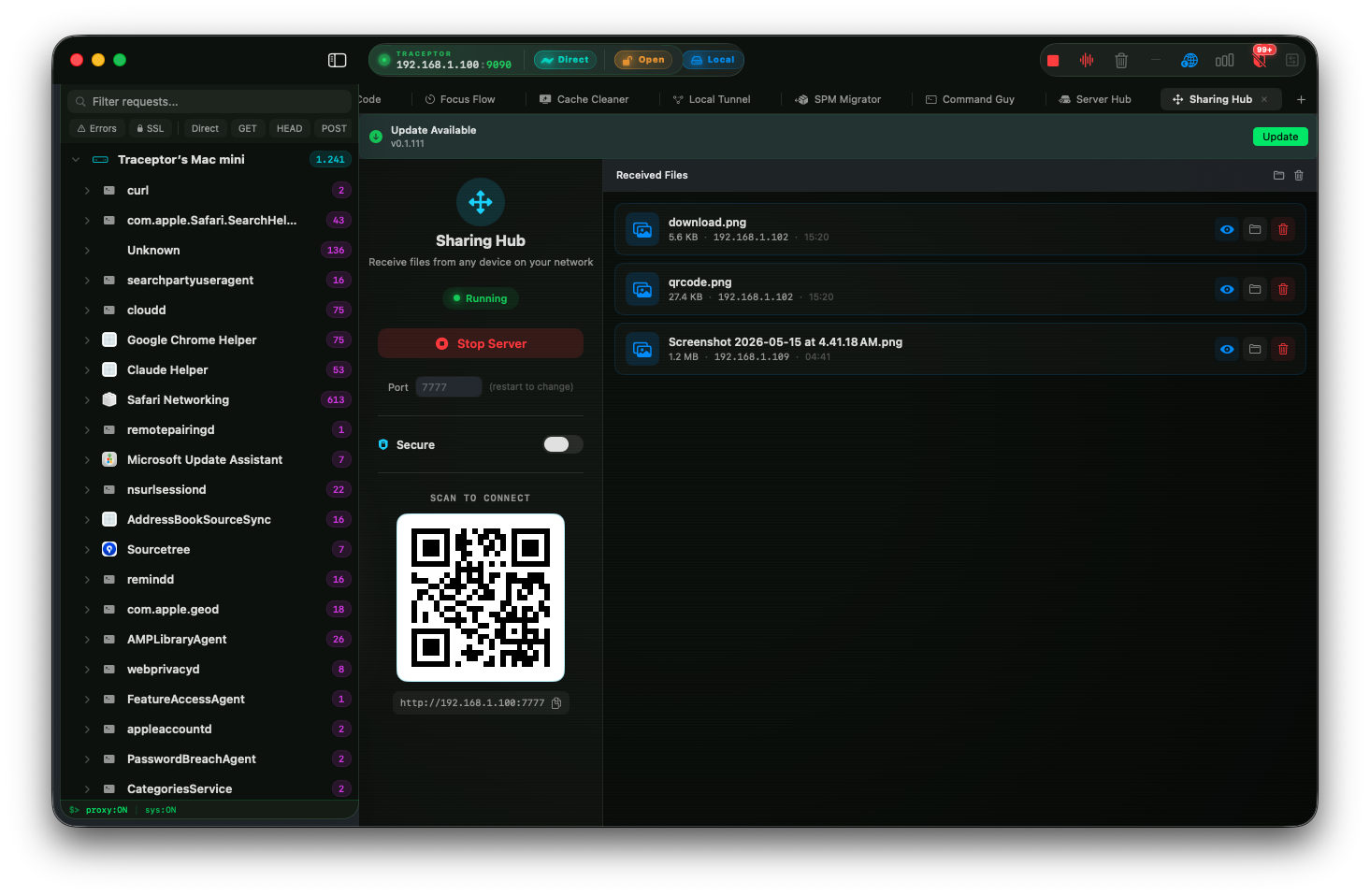
Set it up in 4 steps
Going from zero to receiving an upload from your iPhone over Wi-Fi takes about ten seconds the first time, and less than that after.
Open the Sharing Hub tab and click Start Server
+ menu and pick Sharing Hub. The side panel opens with the server stopped and a gray status dot. Click Start Server. The dot flips green, the status flips to Running, and the QR code renders the URL the LAN can reach (something like http://192.168.1.42:7777). If port 7777 is already taken, edit the port field to anything the OS will hand out, then restart the server.Show the QR code to the phone you want to upload from
Choose filesbutton. If the camera-and-QR dance is annoying (or you’re uploading from another laptop), there’s a copy-URL button next to the port field — paste the URL into any browser on the LAN.From the phone — pick the files and tap Upload
Choose files. iOS shows the standard Photos / Files picker — pick screenshots, photos, screen recordings, HAR files exported from a debugging app, JSON fixtures from the Files app, anything. Multi-select works. Tap Upload. A progress bar runs while each file streams up to your Mac.Watch them stream in on your Mac, bucketed by type
AVPlayer, text and JSON open in a syntax-highlighted reader.Why the HAR shortcut matters
Most of Sharing Hub is “take screenshot off phone, get it on Mac” — which is genuinely useful, but every general-purpose tool does some flavor of that. The bit that only Traceptor can do is HAR ingestion. A HAR file is a structured log of an HTTP session — every request, every response, every header, every body, every timing. Lots of mobile capture tools can export one. The annoying part has always been getting it from the phone to a tool that can actually read it. Sharing Hub closes that loop:
- A QA tester on a non-developer phone reproduces a bug while capturing the session locally as a HAR.
- They open the Sharing Hub URL on the same Wi-Fi as your Mac and upload the HAR.
- The file lands in your files panel with an orange HAR badge.
- You double-clickit. Traceptor parses every entry and opens it in a new proxy-list view — the same view you’d see if you’d captured the traffic yourself.
- You filter, inspect headers, replay requests, diff responses — debug it like it was your own capture.
That last step is the one that matters. There’s no “import HAR” dialog, no conversion step, no second tool. Drop, double-click, debug.
Categories and their colors
Every upload is sorted into one of seven SharedFileType buckets, each with a fixed accent color so the list stays scannable when fifty files are sitting in it.
- Video — Purple. MP4, MOV, screen recordings. Plays inline.
- Image — Blue. PNGs, JPEGs, HEICs, screenshots. Quick Look preview.
- Audio — Pink. Voice memos, M4As, anything playable.
- HAR — Orange. The one that opens straight into a proxy-list view on double-click.
- JSON — Green. Fixtures, API responses, config files, pretty-printed in the previewer.
- Text — Teal. Logs, notes, markdown, anything UTF-8.
- Other— Secondary gray. The catch-all for anything that doesn’t match the first six.
Real use cases
Get screenshots and screen recordings off your phone in seconds
The most common one. You hit a layout bug in a mobile app, screenshot it, want it on your Mac so you can crop it for a Linear ticket. Open the Sharing Hub URL on the phone, pick the shot, tap Upload, drag the image straight from the files panel into the ticket. No iCloud wait, no AirDrop dance with two Apple IDs that mysteriously can’t see each other.
Receive a HAR file from a QA tester on a non-developer phone
Your tester isn’t running Xcode and doesn’t want to. They have an app on their phone that can export a HAR. They’re on the office Wi-Fi. You open Sharing Hub, send them the URL, they upload the HAR, you double-click it and you’re debugging their session in your Traceptor as if you’d captured it.
Drop a JSON fixture from your iPad into the Mac you’re coding on
You sketched a response shape in a notes app on the iPad. You want it as a fixture in your test suite on the Mac. Save it as .json on the iPad, hit the Sharing Hub URL, upload. It lands in your files panel with a green badge, ready to drag into your repo.
Pull crash logs from a distant developer’s phone without installing Xcode
Remote teammate has a crash log on their phone and you don’t want to walk them through an Xcode install just to read it. They’re on a VPN that puts them on your LAN, or you’re in the same room on the same Wi-Fi. URL, upload, opened in the text previewer in seconds.
Sharing Hub vs Server Hub
Traceptor ships a paired hub for the opposite direction. The mental model is dead simple — Sharing Hub is others → Mac, Server Hub is Mac → others.
- Sharing Hub — port 7777, upload-only. Phones and laptops push files onto your Mac.
- Server Hub — port 8888, download. You drop files into the Mac’s shared list, and devices on the LAN open the QR URL to browse and pull them.
Same QR + LAN URL pairing pattern, opposite arrow. Use Sharing Hub when you’re receiving. Use Server Hub when you’re sending.
Safety
Stop the server when you’re done
While Sharing Hub is running, the upload endpoint is open to anyone on the same Wi-Fi who can reach http://your-mac:7777. On your home network or a trusted office LAN that’s fine. On conference Wi-Fi, a cafe, an airport, or any network you don’t control, treat it as exposed — anyone on the same network can upload junk to your files panel. Stop the server the moment you’re done. Don’t leave it running as a long-lived background listener.
Keep reading