Network Throttle: simulate slow connections to test your app under real-world conditions
Traceptor's Network Throttle applies configurable bandwidth caps, latency, and packet loss to every connection through the proxy — ten built-in presets from Wi-Fi to 2G, a 100% Loss mode to test offline handling, and a Custom preset with four independent sliders.
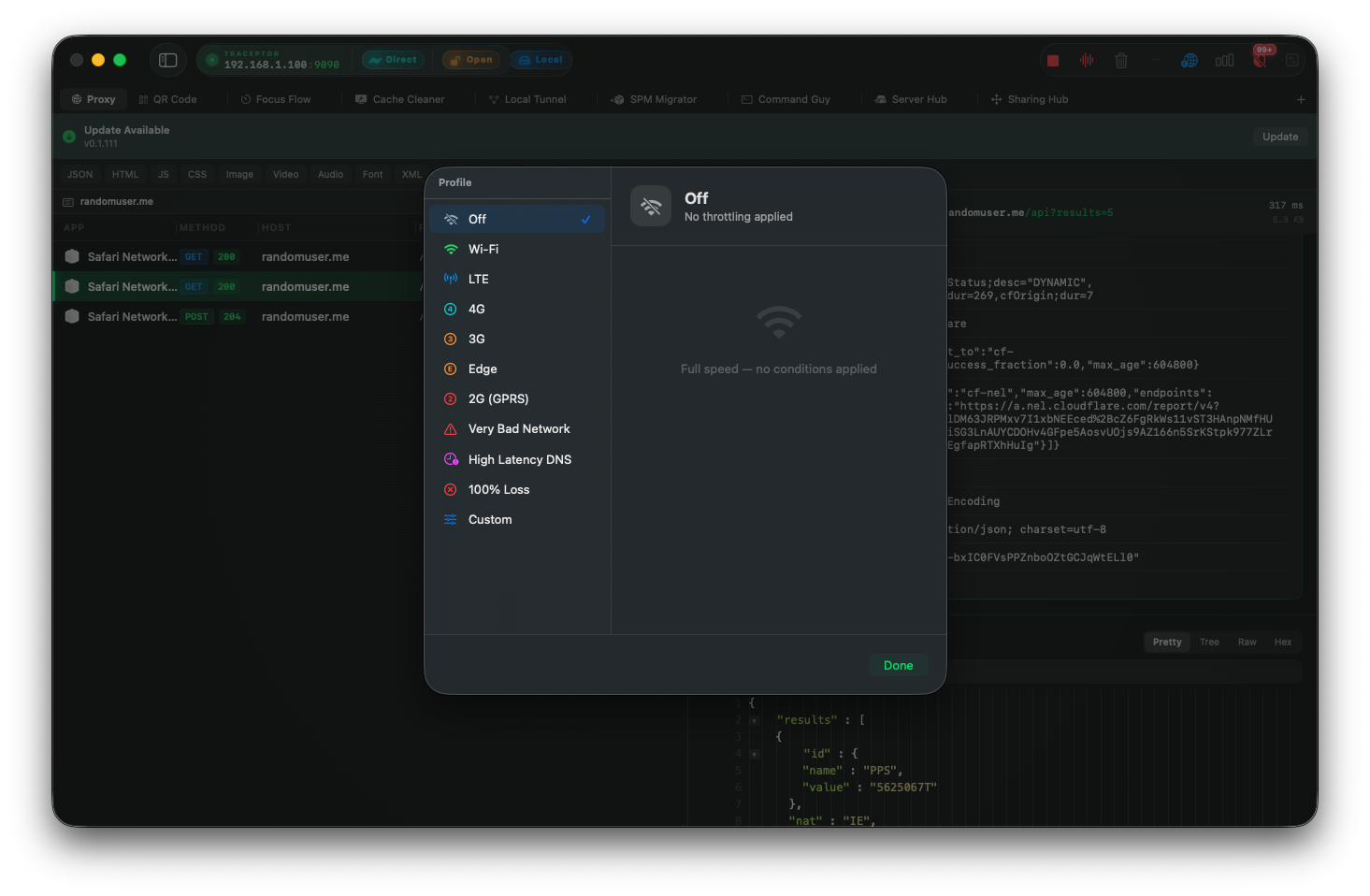
Most apps are developed on a MacBook with a fast Wi-Fi connection and tested in the simulator on localhost. Then they ship to users on a crowded 3G network in a building basement, and every loading spinner becomes a timeout. Network Throttle lets you reproduce those conditions exactly — without leaving your desk.
Network Throttle is a panel inside Traceptor’s Settings. When active, it shapes all traffic passing through the proxy by constraining download bandwidth, upload bandwidth, latency, and packet loss independently. Your app’s network stack sees what a real device on that connection would see — slow responses, dropped packets, and high round-trip times.
The ten built-in presets
The left sidebar lists every preset. Selecting one applies it immediately. The right panel shows an icon card, the preset name, and a one-line summary of its conditions. An orange Active badge appears on the panel header when any throttle is engaged.
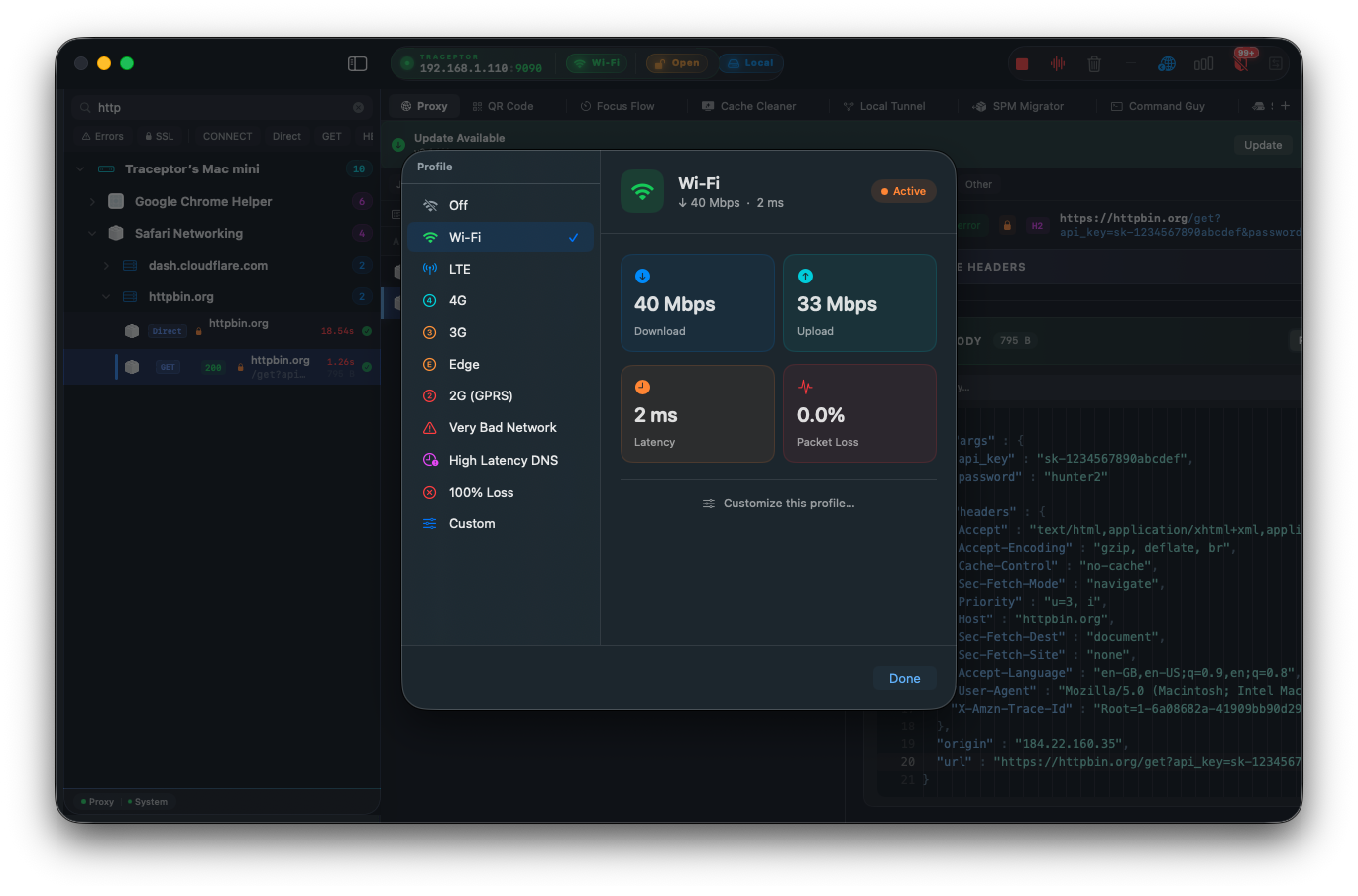
Here are the exact conditions each preset applies:
- Wi-Fi — ↓ 40,000 Kbps · ↑ 33,000 Kbps · 2 ms · 0% loss
- LTE — ↓ 50,000 Kbps · ↑ 25,000 Kbps · 25 ms · 0.5% loss
- 4G — ↓ 20,000 Kbps · ↑ 10,000 Kbps · 50 ms · 0% loss
- 3G — ↓ 780 Kbps · ↑ 330 Kbps · 100 ms · 0% loss
- Edge — ↓ 240 Kbps · ↑ 200 Kbps · 400 ms · 0% loss
- 2G (GPRS) — ↓ 80 Kbps · ↑ 40 Kbps · 800 ms · 1% loss
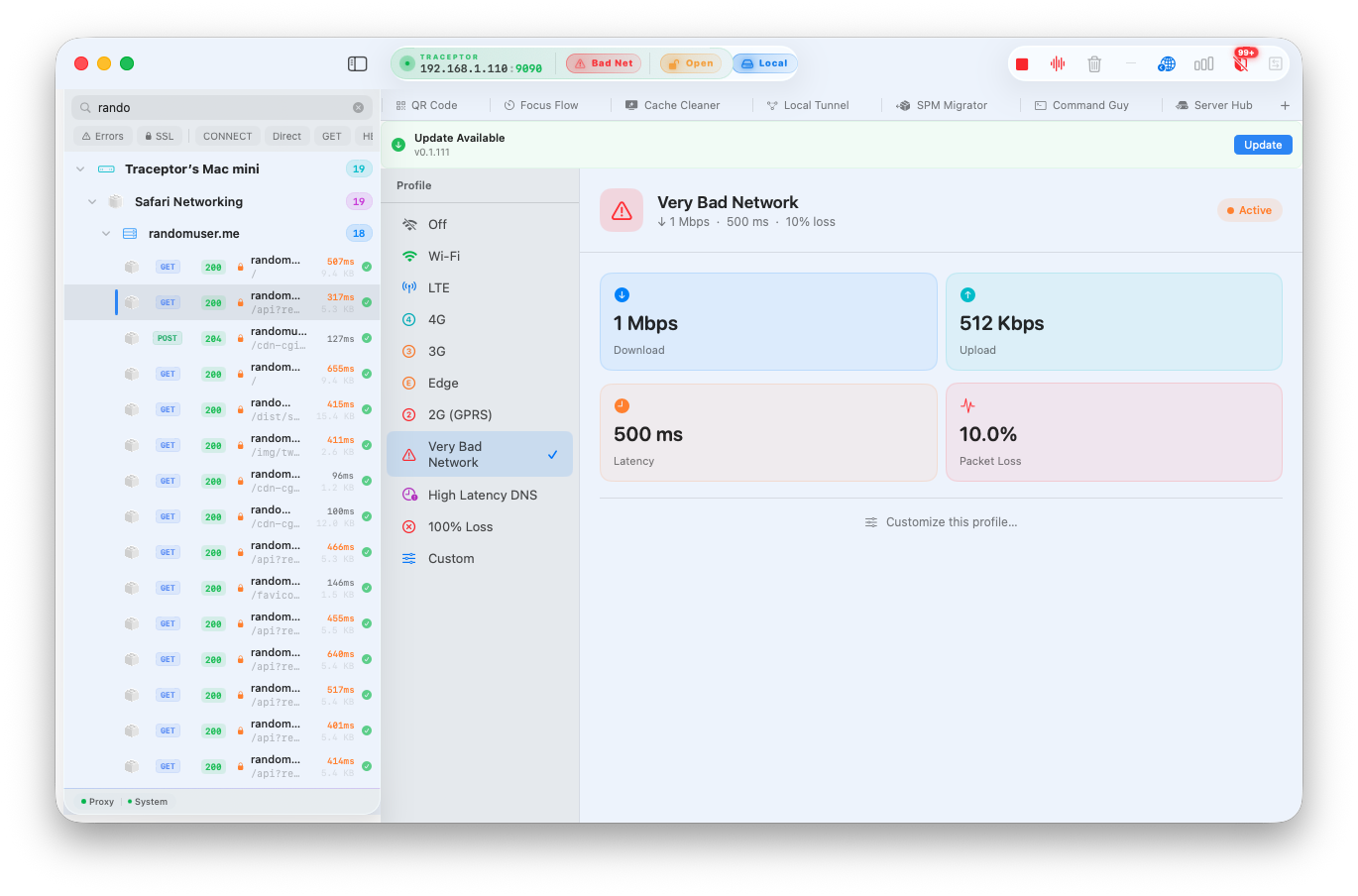
- Very Bad Network — ↓ 1,000 Kbps · ↑ 512 Kbps · 500 ms · 10% loss
- High Latency DNS — ↓ 500 Kbps · ↑ 500 Kbps · 3,000 ms · 0% loss. Simulates a DNS server that takes three seconds to respond — every new hostname lookup stalls.
- 100% Loss — all packets dropped. The app gets no responses at all, as if the device had no network interface.
- Custom — four independent sliders; see below.
Off means no conditions applied
Custom preset
When none of the built-in presets match what you need, switch to Custom. Four sliders let you set exact values:
- Download Bandwidth — 0 to 100,000 Kbps
- Upload Bandwidth — 0 to 100,000 Kbps
- Latency — added round-trip delay in milliseconds
- Packet Loss — percentage of packets dropped
If you want to start from a preset and tweak one value, click Customize this profile…while a built-in preset is selected. Traceptor copies that preset’s four values into the Custom sliders and switches to Custom automatically — so you’re adjusting from a realistic baseline rather than from zero.
Practical uses
Testing image loading and skeleton states
Switch to 3G and reload your feed screen. Images that load “instantly” in development take two or three seconds on 780 Kbps. If your app has no skeleton or placeholder, users see a blank area with no feedback. Throttle makes that visible before it ships.
Validating offline error handling
100% Loss simulates a device with no connectivity. Every request your app sends returns an error immediately. Run through your main flows and confirm that every screen that touches the network shows an appropriate error state — not a blank screen, not an infinite spinner, and not a crash.
Reproducing timeout bugs
High Latency DNS adds a 3-second stall to every new hostname lookup. If your app has a short request timeout and doesn’t distinguish between a timeout and a server error, the user sees a misleading message. Enabling this preset reproduces the condition reliably so you can fix the timeout handling and the copy separately.
Load testing pagination
Combine Edge or 2G with your app’s infinite scroll. On a fast connection, the next page loads before the user notices a gap. At 240 Kbps, the gap is obvious — and you can verify that your loading indicator actually appears and that duplicate page requests don’t stack up.
Throttle affects all proxied traffic
Keep reading