How to see which apps are secretly tracking you — and block them
Most people suspect their apps are phoning home constantly. Few have actually watched it happen. Proxy your Mac and iPhone through Traceptor and you see every analytics ping, attribution call, and session-replay upload in real time — then Block Presets kills them.
Open a random app on your iPhone and tap around for thirty seconds. Before you even reached the second screen, it already sent your device ID, session start time, and the sequence of every element you touched to at least one analytics server — often three or four. You consented to this in a privacy policy you didn’t read, and the requests are invisible unless you know exactly where to look.
This guide shows you how to make the invisible visible: set up Traceptor as a proxy for your Mac and iPhone, watch tracking requests appear in real time, identify which SDK is sending them, and then turn on Block Presets to stop them — without installing any browser extension or VPN.
What tracking looks like at the network level
Tracking isn’t hidden in the sense that it uses some obscure protocol. It’s ordinary HTTPS POST requests to well-known domains. The opacity comes from the fact that no UI ever shows them to you. Once you can see the requests, they’re immediately recognizable:
- Product analytics(Mixpanel, Amplitude, PostHog, Heap, Pendo) — batched JSON payloads to endpoints like
api.mixpanel.com/trackorapi2.amplitude.com/2/httpapi, sent every few seconds. Each event includes a device ID, session ID, event name, and a property map of everything the user did. - Mobile attribution(AppsFlyer, Adjust, Branch, Kochava) — sent at install, launch, and every in-app event deemed conversion-worthy. These exist to tell advertisers which ad campaign caused an install. The payload includes IDFV, device model, OS version, and which campaigns the device was exposed to.
- Session replay(FullStory, LogRocket, Hotjar, Clarity) — a continuous stream of interaction events (taps, scrolls, text inputs) that are replayed server-side to reconstruct exactly what you did in the app. These are the most intrusive: in a poorly configured integration they can capture sensitive fields before the developer remembers to mask them.
- Customer engagement(Braze, OneSignal, Iterable, Klaviyo) — sync your in-app behavior to a CRM so the marketing team can trigger push notifications and emails based on what you did (or didn’t do) in the app.
- Telemetry and tag managers— OS-level and vendor telemetry, plus catch-all CDPs that aggregate events from multiple SDKs and fan them out to every analytics destination the company subscribes to.
See it yourself in five minutes
On your Mac
Open Traceptor and make sure the proxy is running — the status indicator in the toolbar shows green when traffic is flowing through. Every HTTP/HTTPS request from every app on your Mac now appears in the proxy list. Open Spotify, Slack, VS Code, or any Electron app and watch the host column. You’ll see requests to first-party servers mixed with requests to analytics domains you didn’t expect.
Use the search bar at the top of the list to filter by host. Type mixpanel or amplitude or appsflyer and see whether that SDK is present in the apps you use every day. Click any request and open the Bodytab to read the exact payload being sent — including your device identifier, the event name, and every property attached to it.
On your iPhone or iPad
Traceptor can proxy any device on the same Wi-Fi network. The setup is described in detail in the iPhone API debugging guide, but the short version:
- In Traceptor, go to Setup → iOS / Androidand note the proxy address (your Mac’s IP and port 8888)
- On your iPhone: Settings → Wi-Fi → your network → Configure Proxy → Manual → enter the Mac’s IP and port 8888
- Visit
traceptor.com/certin Safari on the iPhone, install the CA certificate, then go to Settings → General → VPN & Device Management → trust it - Open any app and watch Traceptor fill up with requests, now from your phone
Try it with an app you trust
Block Presets: one toggle, done
Seeing the tracking is useful. Stopping it is better. Traceptor’s Block Presets are curated domain lists, grouped by category, that you install per device. When a request matches a blocked host, Traceptor issues a TCP RSTbefore the TLS handshake completes — the connection is refused instantly, and the tracking SDK gets an error rather than a response it can retry later.
The two master toggles
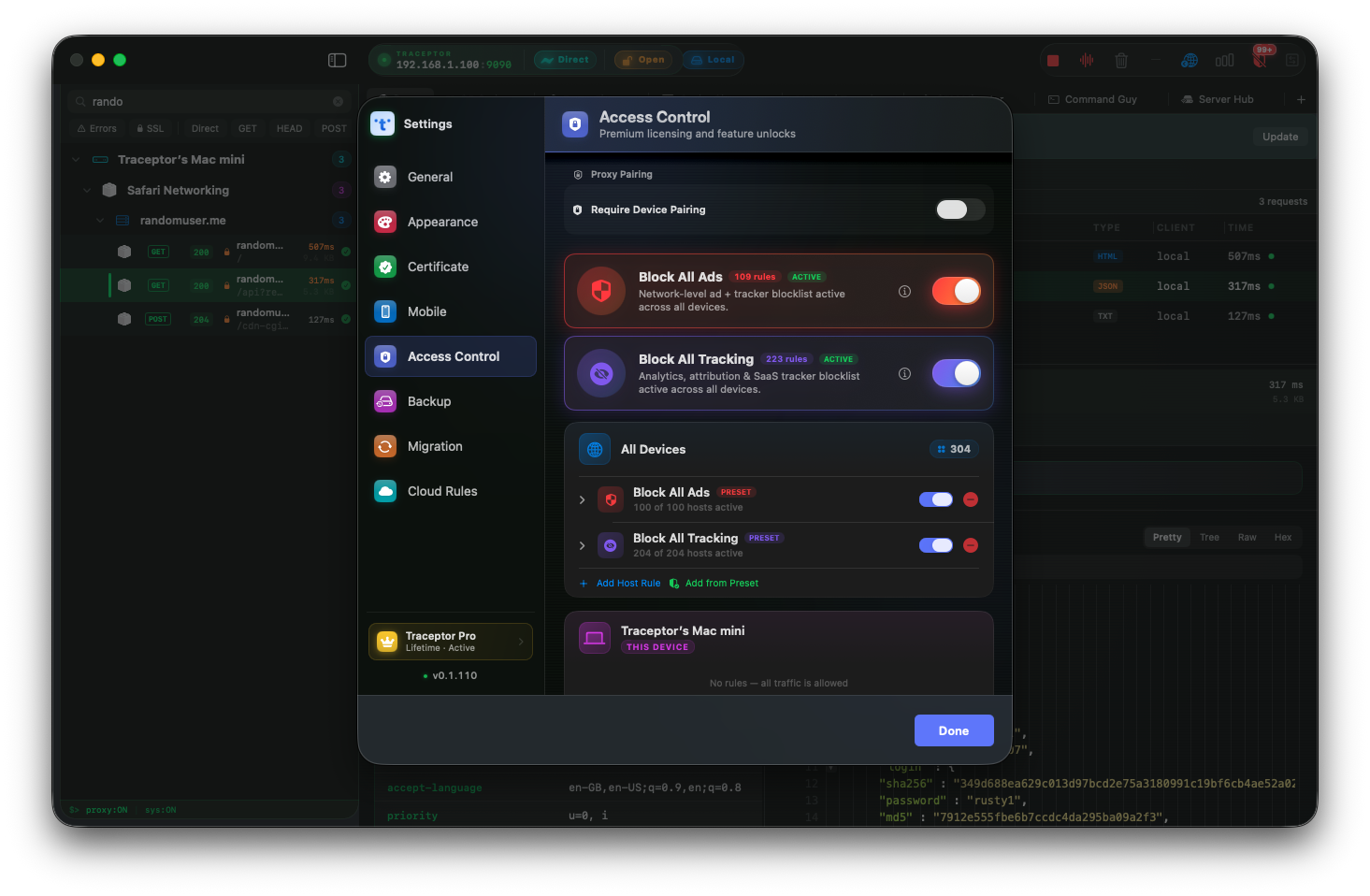
The fastest path is the two master bundles at the top of the Access Control view:
- Block All Ads— installs rules for ad networks and exchanges: Google Ads, Meta/Facebook Audience Network, Amazon Publisher Services, YouTube ads, and a broad set of programmatic ad networks
- Block All Tracking— installs rules for product analytics (Mixpanel, Amplitude, PostHog, Heap, Pendo), mobile attribution (AppsFlyer, Adjust, Branch, Kochava), session replay (FullStory, LogRocket, Hotjar, Microsoft Clarity), customer engagement (Braze, OneSignal, Iterable, Klaviyo), feature flags (LaunchDarkly, Statsig, Split.io), and general telemetry
À la carte presets
If you want precision rather than a blanket block, each category is also available as an individual preset. You can block session replay without blocking analytics, or block attribution without touching feature flags. Presets are listed in collapsible folders in the Access Control view; each folder shows how many rules are active and how many total the preset contains.
Per-device scoping
Block rules apply to a scope you choose: All Devices (everything routed through Traceptor), This Mac (local apps only), or a specific connected device. You can run Block All Tracking globally on your iPhone while leaving your Mac unblocked, or vice versa. Rules applied to a specific device only activate when that device is proxied through Traceptor.
Custom rules
Every block list has gaps — internal analytics endpoints, custom telemetry domains, or a niche SDK not yet on the preset list. The Add Host Rule button (Premium) lets you add a wildcard pattern like *.analytics.mycompany.com or an exact hostname, and choose Block (TCP RST) or Hide (traffic still flows but is removed from the proxy list view). App-level rules let you block or hide all traffic from a specific bundle ID, which is useful for isolating a single app during testing.
What you will and won’t see blocked
The presets are effective against third-party network calls. There are a few categories where the result is partial or none:
- YouTube in-stream video ads— YouTube mixes ad segments into the same HLS/DASH stream as the content. Blocking at the host level can’t split a single video stream into “ad” and “not ad” at the network layer. Pre-roll and banner ads (separate requests) are blocked; in-stream mid-rolls are not.
- First-party analytics— if a company runs its own analytics infrastructure on the same domain as its product (e.g.,
analytics.theirapp.com), blocking it would also break the product. The presets focus on third-party SDK domains you can block safely. - On-device tracking— some telemetry is aggregated and sent as part of a larger payload, or is computed on-device via privacy-preserving frameworks. Network-level blocking doesn’t affect this.
This is network-level blocking, not ad removal
The Block Report
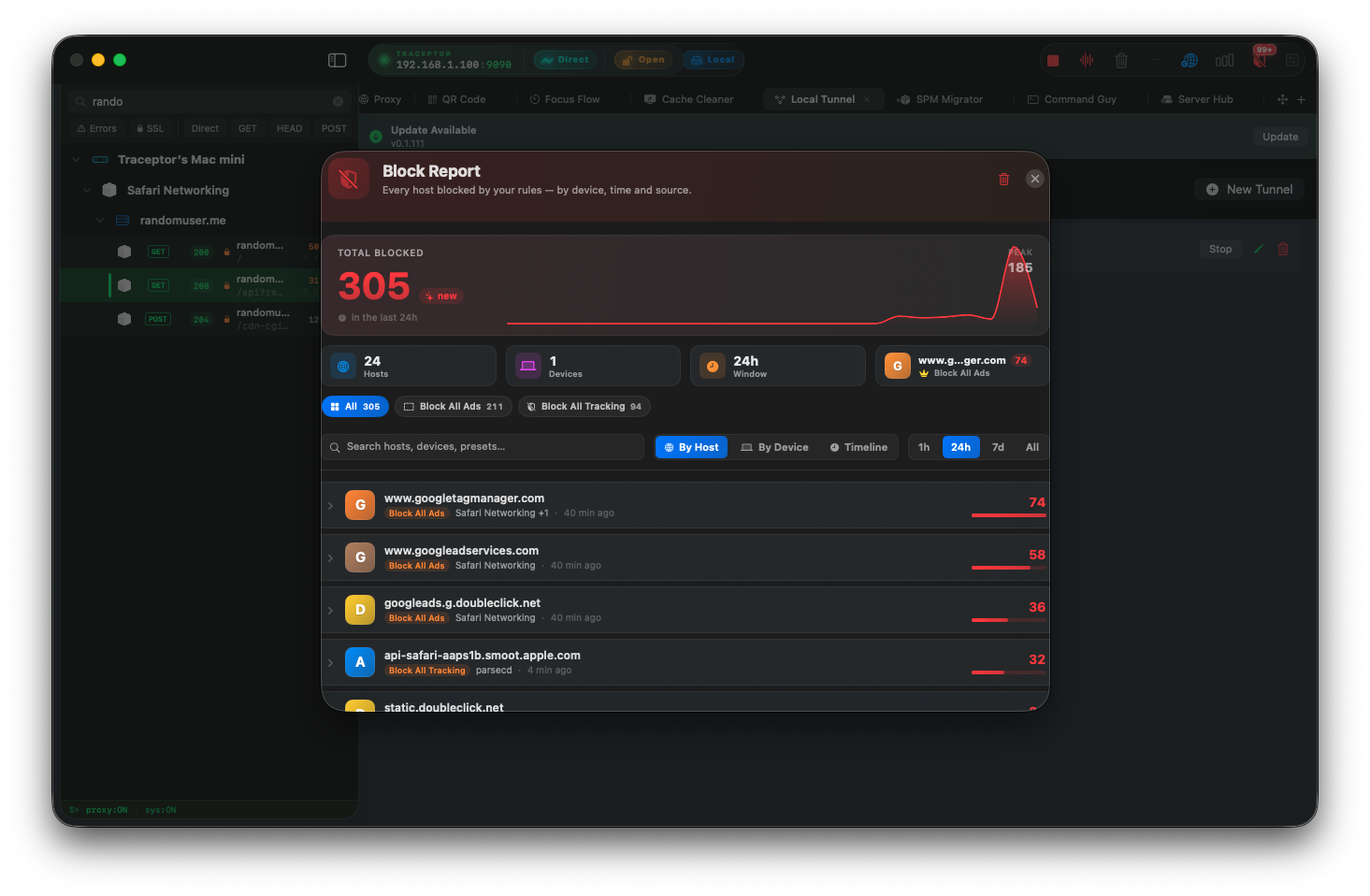
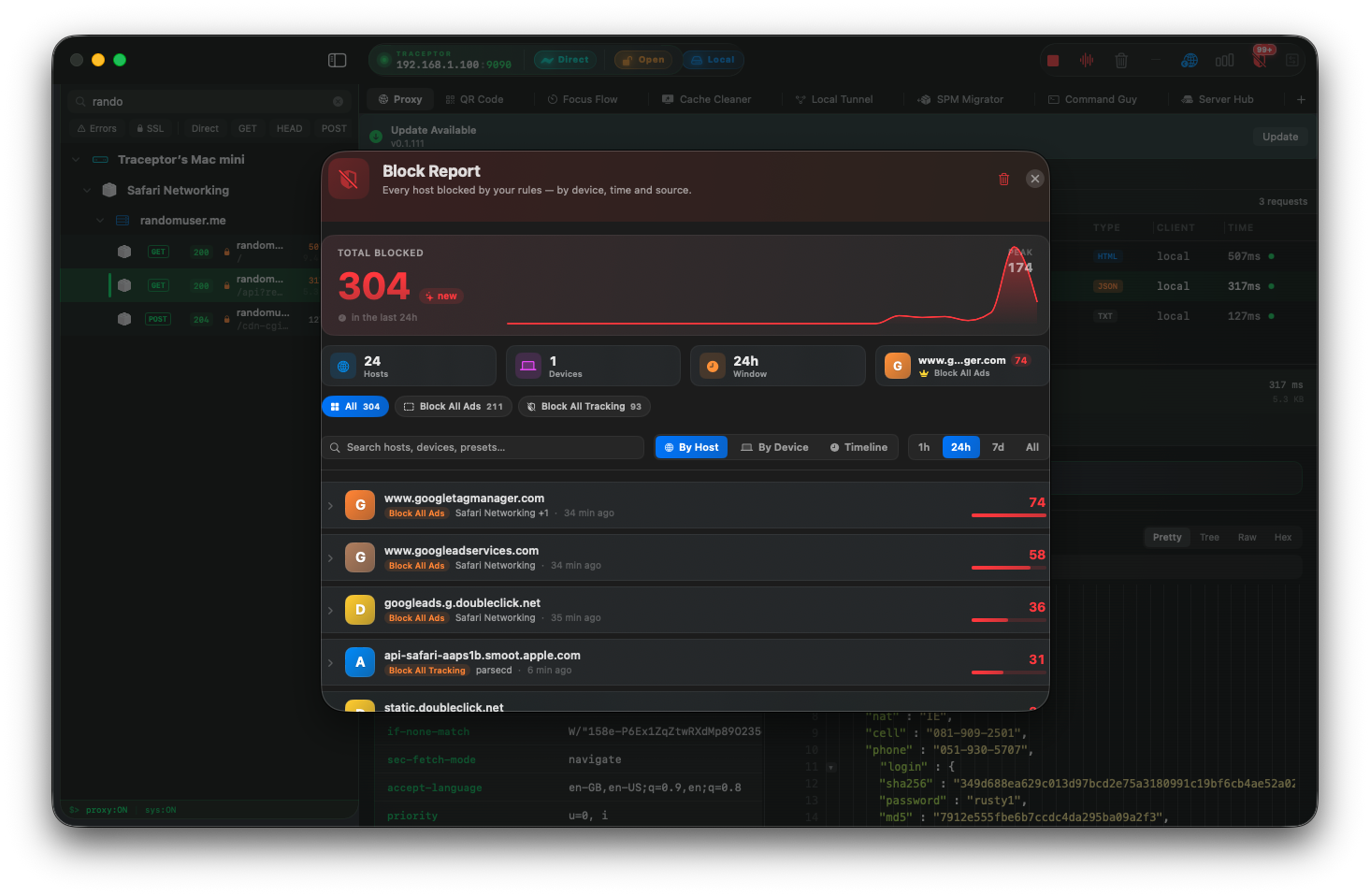
Access Control’s header includes a Block Report button that shows a per-host count of everything Traceptor has blocked since the preset was installed. After running Block All Tracking for a week, the report typically shows thousands of blocked requests across a handful of recurring domains — a concrete picture of what was leaving your devices before you turned it on.
A note on privacy vs. debugging
If you’re a developer who ships analytics in your own app, running Block All Tracking while you develop will block your own SDK calls. The cleanest workflow: scope the block rules to This Macor a specific device rather than All Devices, so your test device still sends events to your analytics dashboard while your personal browsing stays clean. Alternatively, leave tracking unblocked during development sprints and turn it back on when you’re done — the preset installs and uninstalls in one click.
Keep reading