How to clear cache on Mac — and reclaim gigabytes with Traceptor's Cache Cleaner
Traceptor's built-in Cache Cleaner scans seven categories of reclaimable space — app caches, Xcode junk, browser caches, developer tool caches, logs, temp files, and Trash — shows you exactly how big each one is, and lets you delete selectively before touching anything.
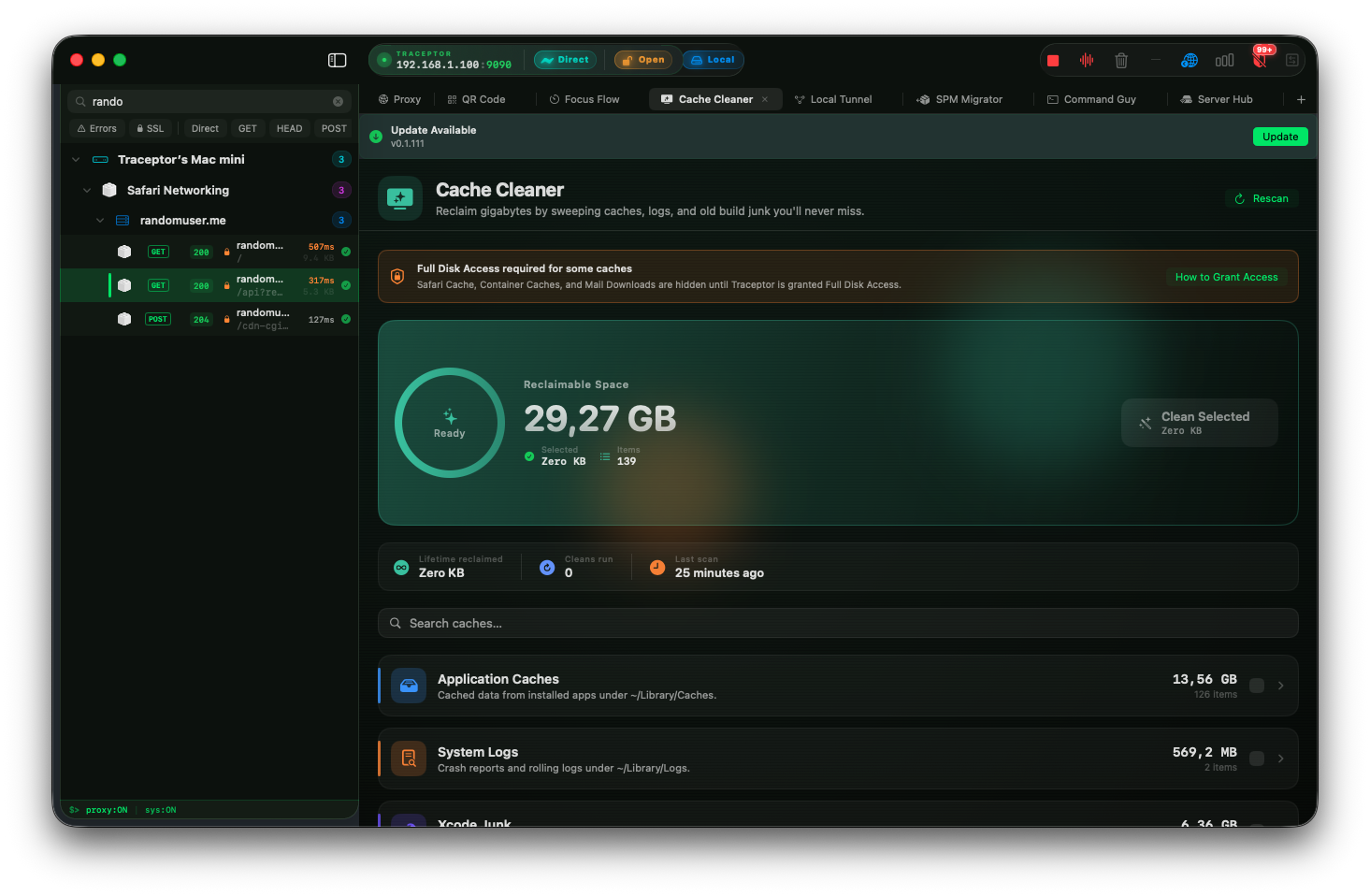
Most developers clear cache the hard way: hunting through ~/Library/Caches in Finder, running xcodebuild clean, and trying to remember which folders are safe to delete. The problem isn’t knowing that caches exist — it’s knowing how big each one is, whether it’s safe to remove right now, and seeing the result immediately. Traceptor’s Cache Cleaner does all three.
Cache Cleaner is a tab inside Traceptor’s Developer Toolbox. It scans your Mac asynchronously, surfaces reclaimable space by category with per-item sizes, and removes only what you explicitly select — the parent directories are never touched.
Scan first, decide second
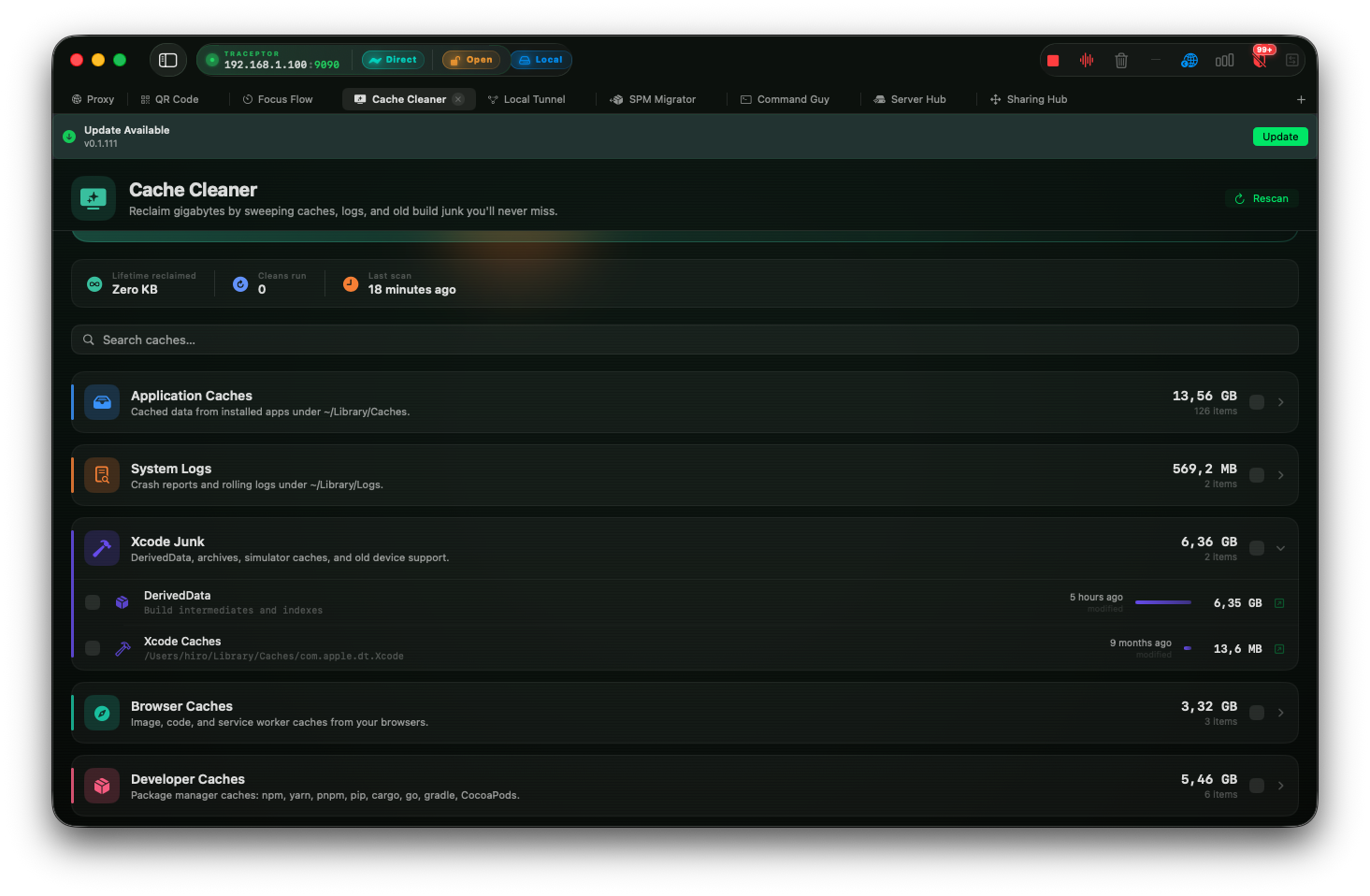
Open Cache Cleaner and it starts scanning immediately. A circular progress dial in the hero card shows percentage complete and the name of the directory currently being measured. The Reclaimable Spacetotal updates as each category finishes, so you can see the number grow in real time — no waiting for a full scan before the data appears.
Every item is sorted largest-first within its category. A per-row size bar gives a visual weight so you can spot the biggest offenders at a glance. The last-modified date for each item is shown so you can tell whether it’s from last week or two years ago. A Show in Finder button on each row reveals the exact folder in Finder before you delete anything. Hit Rescan in the header whenever you want a fresh measurement.
The seven categories
Cache Cleaner organizes everything into seven groups. Three are available on the free tier; four unlock with Premium.
Application Caches — free
Cached data from installed apps under ~/Library/Caches, the saved application state folder, and the cache directories inside sandboxed app containers (~/Library/Containers). Displayed per-app so you can delete Slack’s 800 MB cache without touching anything else. Only the contents of each folder are removed; the folder itself stays.
System Logs — free
Crash reports and rolling log files under ~/Library/Logs and ~/Library/Logs/DiagnosticReports. These accumulate silently and can run into hundreds of megabytes on a machine that’s been in heavy use.
Trash — free
Shows how many items are currently in the Trash and how much space they occupy. An Empty Trash button empties it directly from the Cache Cleaner view without switching to Finder.
Xcode Junk — Premium
This is usually where the biggest numbers are. Cache Cleaner covers:
- DerivedData— build intermediates and index data at
~/Library/Developer/Xcode/DerivedData. Safe to delete any time; Xcode rebuilds it on the next build. - Xcode Archives — old release archives at
~/Library/Developer/Xcode/Archives. Delete the ones you no longer need for re-signing or dSYM lookups. - iOS, watchOS, and tvOS Device Support— symbol bundles downloaded for each OS version you’ve debugged on a physical device. Old versions accumulate and are rarely needed.
- Simulator Caches at
~/Library/Developer/CoreSimulator/Caches - Xcode Documentation Cache and Xcode’s own cache folder under
~/Library/Caches/com.apple.dt.Xcode
Browser Caches — Premium
Image, script, and service worker caches for every browser installed on your Mac: Safari, Chrome, Brave, Firefox, Arc, Edge, and the shared WebKit cache. Each browser gets its own row so you can clear one without affecting the others.
Developer Caches — Premium
Package manager download caches that grow quietly over months: npm (~/.npm), Yarn, pnpm, pip, CocoaPods, Cargo, Go build cache, Gradle, and Homebrew downloads. These are all safe to clear; your package manager re-downloads what it needs on the next install.
Temporary Files — Premium
Quick Look thumbnails, Mail Downloads (attachments opened from Mail that were never explicitly saved), and iOS Software Updates cached by iTunes. These are never needed after the fact.
Selecting and cleaning
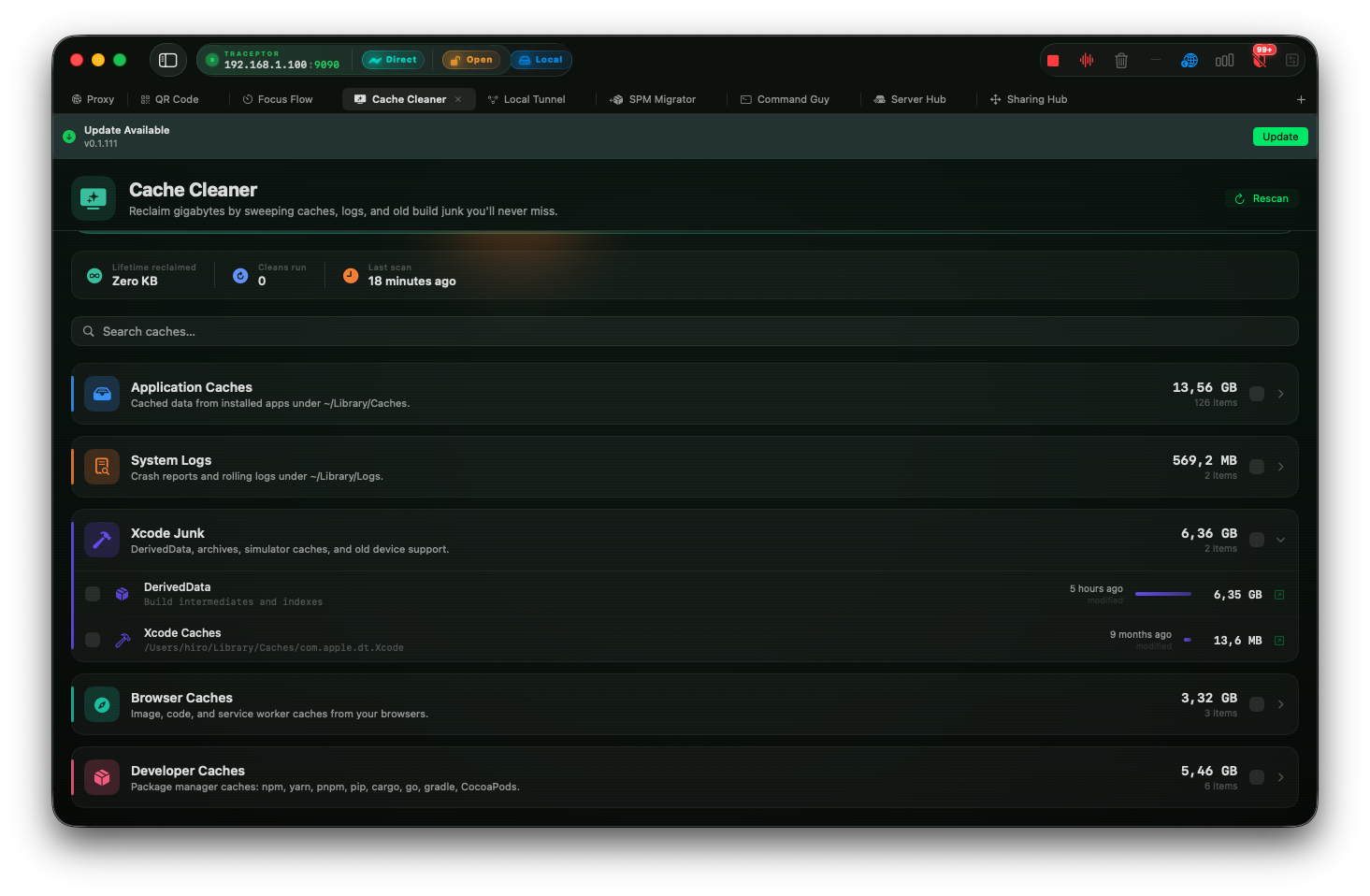
Each category header has a checkbox that selects every removable item in that group at once. Individual rows have their own checkboxes for surgical selection. The hero card’s Selected counter updates as you check things off so you always know how much you’re about to free.
Hit Clean Selected and a confirmation dialog appears before anything is deleted: it shows the item count, the estimated space freed, and a note that locked or in-use files are skipped automatically. Confirm, and the cleaner works through the list, skipping anything another app currently has open rather than erroring out.
When it finishes, a toast notification shows the exact bytes reclaimed, and a sparkle burst animates over the hero card. The rows that were cleaned disappear from the list. The Lifetime reclaimed counter at the top tracks the running total across every session so you have a record of how much space the tool has recovered over time.
Search to find a specific cache
What it won’t touch
Cache Cleaner is intentionally conservative. It operates only on a fixed whitelist of known-safe cache locations. It never deletes a parent directory — only its contents. Files that are locked or currently open by a running app are automatically skipped with a log entry rather than producing an error that aborts the rest of the clean. System-level caches that require elevated permissions are not included.
Keep reading