Command Guy: stop retyping the same shell commands every day
Command Guy is a workspace tab inside Traceptor that holds your most-used shell commands as one-click tiles. 27 built-ins out of the box — git, curl, npm, network diagnostics — plus any custom command you save. Live streaming output, exit codes, pinned favorites.
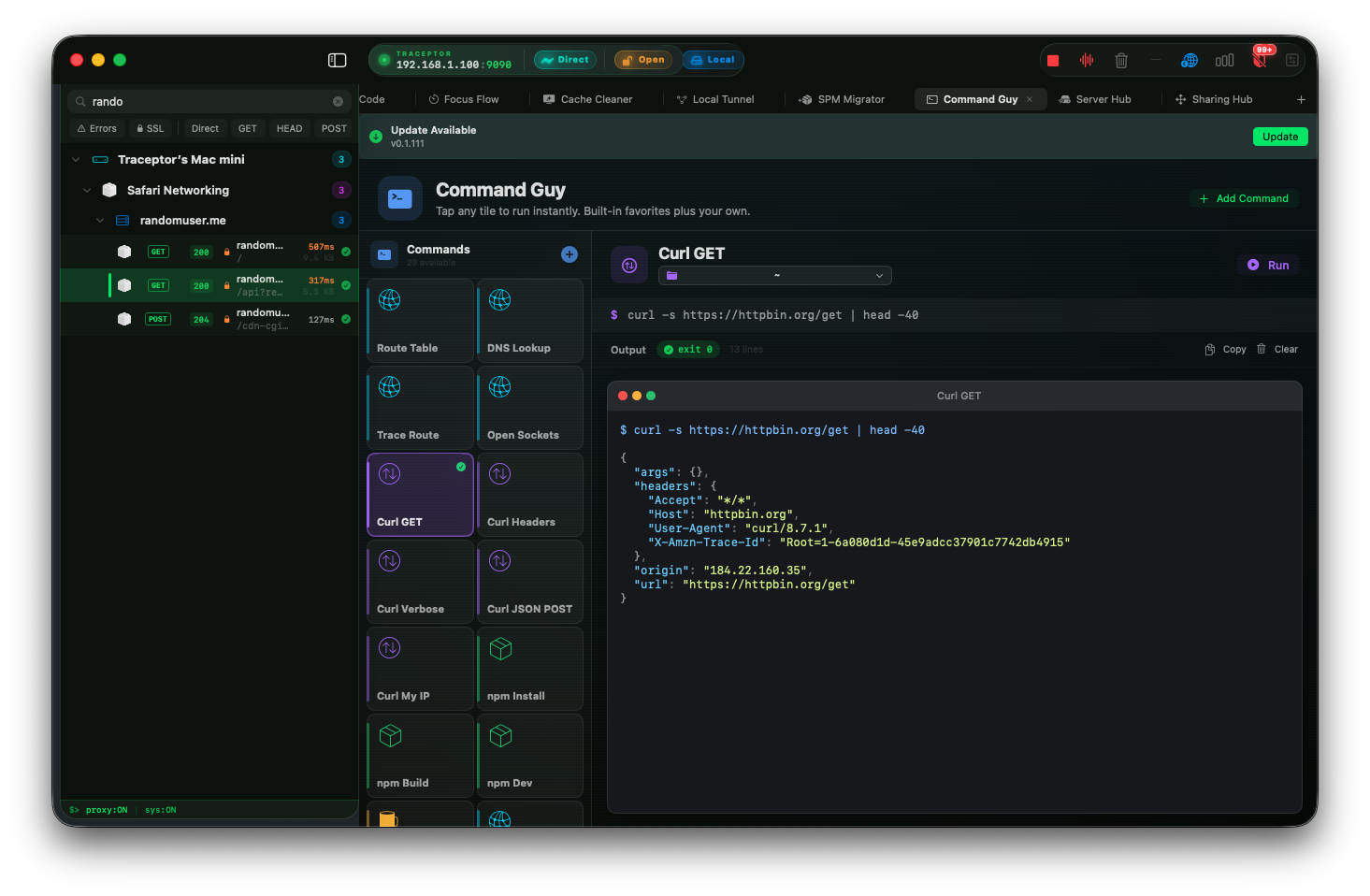
Every developer has a small set of shell commands they run all day. git status. npm run dev. curl -I example.com. lsof -i :3000the third time something stomps on your port. You either remember them all, alias half of them in a dotfile, or retype them three times a day for the rest of your career. There is a third way, and it’s built into Traceptor.
What Command Guy actually is
Command Guy is a workspace tab inside the Mac app — icon apple.terminal.fill, title bar tagline “Tap any tile to run instantly. Built-in favorites plus your own.” It’s a two‑pane layout: a Metro-style live-tile sidebar on the left with your commands, and a detail pane on the right that streams the live output of whichever command you just tapped. Free tier — no Premium gate, no rule limits, nothing to upgrade.
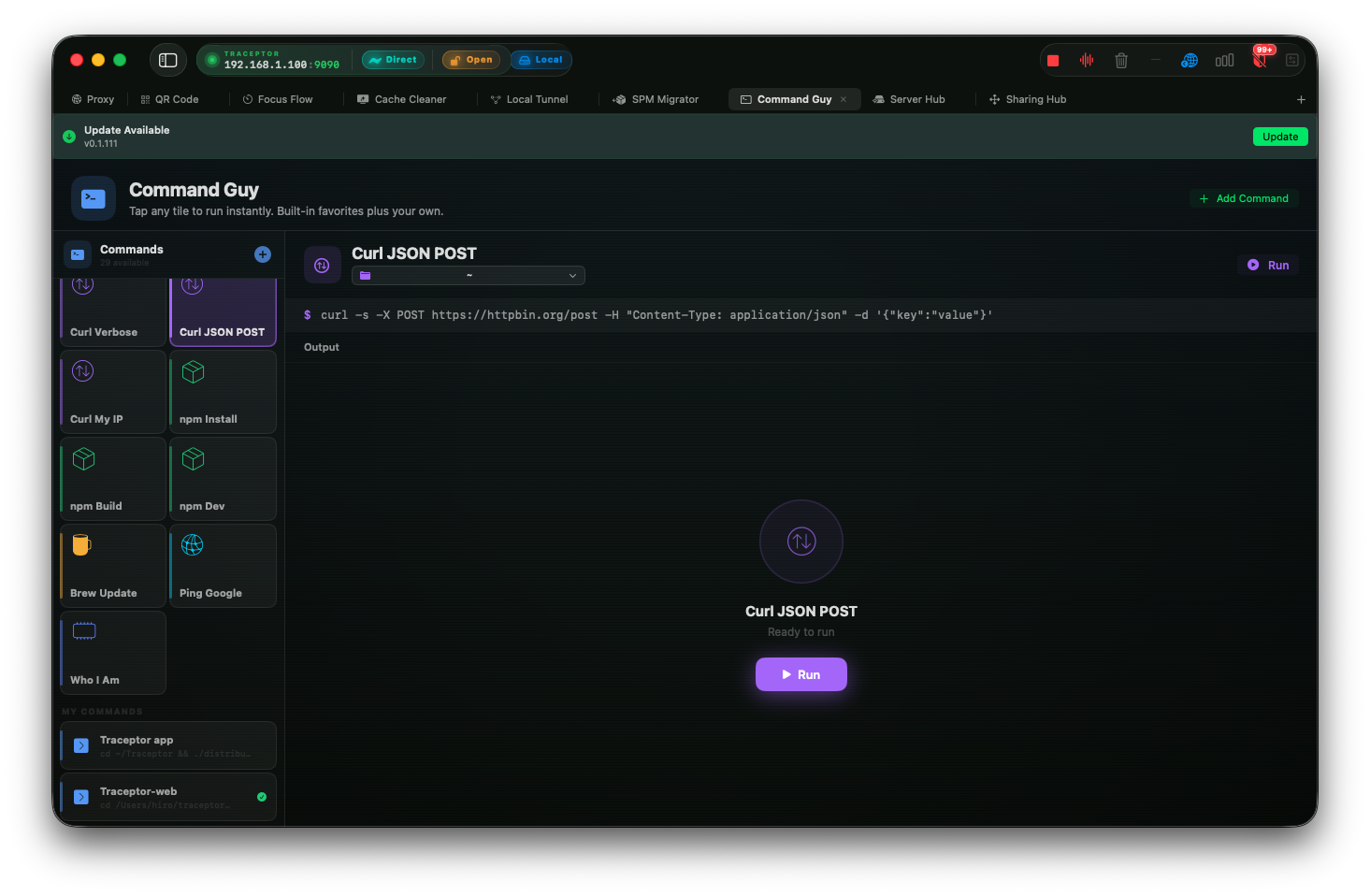
Each tile shows its name, its category color, and an indicator that animates while the command is running. Hit it once, the command starts; hit it again to stop. The detail pane shows stdout line‑by‑line as it arrives, with the exit code shown once the process finishes. You can keep multiple commands running in parallel and flip between them by selecting different tiles.
27 built-in commands, ready to go
Open Command Guy for the first time and the sidebar is already full. The shipped catalog covers the daily-driver workflows every developer hits, grouped by category and color-coded so you can find them by muscle memory after a week.
- Git (5)— Git Status, Git Pull, Git Log (oneline, last 15), Git Diff (stat), and a Git Empty Commit one‑liner for when you need to kick CI without a real change.
- Network (8) — Network Ports (listeners via
lsof), My IP, Network Info, DNS Servers, Route Table, DNS Lookup, Trace Route, Open Sockets. - Curl (5) — Curl GET, Curl Headers (the
-Ishortcut), Curl Verbose (top 60 lines), Curl JSON POST againsthttpbin.org, and Curl My IP (piped throughpython3 -m json.toolfor pretty output). - npm (3)— Install, Build, Dev. The three commands every Node project lives and dies by.
- System (4) — List Files (
ls -la), Disk Space (df -h), System Load (a clean top snapshot), Who I Am (whoamiplusid). - Shell (1)— Brew Update + Upgrade, the one you forget to run for a month.
- Misc (1)— Ping Google, the universal “is my internet broken?” check.
Run in 3 steps
Open the Command Guy tab
+ button in the workspace tab bar and pick Command Guy. The picker lists it under utilities with the tagline “Save and run shell commands from your workspace.” Only one Command Guy tab can be open at a time, so re-opening it just re-selects the existing tab.Tap a tile
Watch output stream in the detail pane
npm run devor a tail-style process keep flushing output as it arrives, throttled to the main thread so the UI doesn’t choke on a chatty server. Exit code shows once the process ends; the Stop button kills the process cleanly if you need to bail.Working directory matters
~(your home folder). Edit it on a custom command to point at the repo or project you actually want the command to run in — ~/work/api-server, ~/dotfiles, whatever. For the built-ins, ~ is the right default; for npm run dev on your current project, save a copy with the project path baked in.Add your own — custom commands
Hit the + in the sidebar header or the toolbar to add a new command. Three fields:
- Name— the label that shows on the tile. Keep it short; you’ll be reading it at a glance.
- Command— the actual shell string. Quoted arguments, pipes, redirection, environment variables — all work the way they would in a regular shell.
- Working directory —
~or an absolute path. The command runs as if you hadcd'd there first.
Custom commands persist via @AppStorageand survive across Traceptor restarts. The same goes for pinned commands — pin the ones you reach for daily, and they move to the Pinned section at the top of the sidebar as full-width tiles so they’re always one tap away.
ruleName:        Start API server
Command:     npm run dev
Working dir: ~/work/api-server

Name:        Sync dotfiles
Command:     cd ~/dotfiles && git pull && stow .
Working dir: ~

Name:        Tail prod logs (read-only)
Command:     ssh ops@bastion -- "tail -f /var/log/api/access.log"
Working dir: ~
Six favorites from the built-in catalog
Git Empty Commit
The clever one. git commit --allow-empty -m "empty commit" exists for a single purpose: re-triggering a CI pipeline without an actual code change. Faster than re-running the build manually, cleaner than pushing a typo and amending.
Network Ports
lsof -i -n -P | grep LISTEN | head -20. The answer to “what’s already using port 3000?” in under a second. Pair it with the next tile in the chain — right-click the offending process in the output and kill it from your normal terminal.
Curl Headers
curl -I https://example.com. The minimum-viable HTTP check: is the server up, what status is it returning, what cache headers, which CDN. Two seconds, no opening a browser, no devtools.
DNS Lookup
nslookup google.com. The first command to run when something on the network “just feels off.” If DNS is broken, every higher-level diagnostic is meaningless — this rules it out in one tap.
Trace Route
traceroute -m 15 google.com. When a request is mysteriously slow, this tells you whether the latency is local (first hop), at your ISP, or somewhere out in the wild. The 15-hop cap keeps it from running forever.
Disk Space
df -h. The build that failed for no reason 95% of the time: you ran out of disk. One tap, you see the truth, you go delete an old Xcode DerivedData folder.
Why it’s in a debugging proxy
Because the moments you reach for these commands tend to cluster around the same moments you reach for a proxy. You’re debugging a flaky request — curl -Ithe host. You wonder if your dev server crashed — check the port. You see a weird CDN header — run a DNS lookup on the origin. Putting these tools one tab away from your captured traffic keeps the entire debugging loop inside one window, instead of bouncing to a terminal and losing your place.
That said, Command Guy doesn’t care that it lives inside a proxy debugger. The built-ins are useful in their own right; npm run devworks the same whether you have Traceptor open or not. It’s a personal command launcher first, a debugging companion second.
Small touches that matter
- Category colors— orange for git, cyan for network, purple for curl, green for npm, indigo for system, yellow for shell, blue for custom. After a week you find tiles by color before you read the label.
- Live shimmer on running tiles— subtle animation on the tile background while the process is alive, so you can see at a glance what’s still going.
- Throttled output — an internal
OutputThrottlecoalesces high-frequency stdout into batched main-thread flushes, so a chattynpm run devcan’t melt the UI. - Clean shutdown— close the tab, every running process gets a clean stop. No zombies hiding behind your dock icon.
Keep reading