SPM Migrator: swap remote Swift packages for local clones in one click
Traceptor's SPM Migrator parses your Xcode project.pbxproj, lists every remote Swift Package dependency, and rewrites the ones you select to local file references — with auto-detection of existing clones, a timestamped backup, and one-click revert.
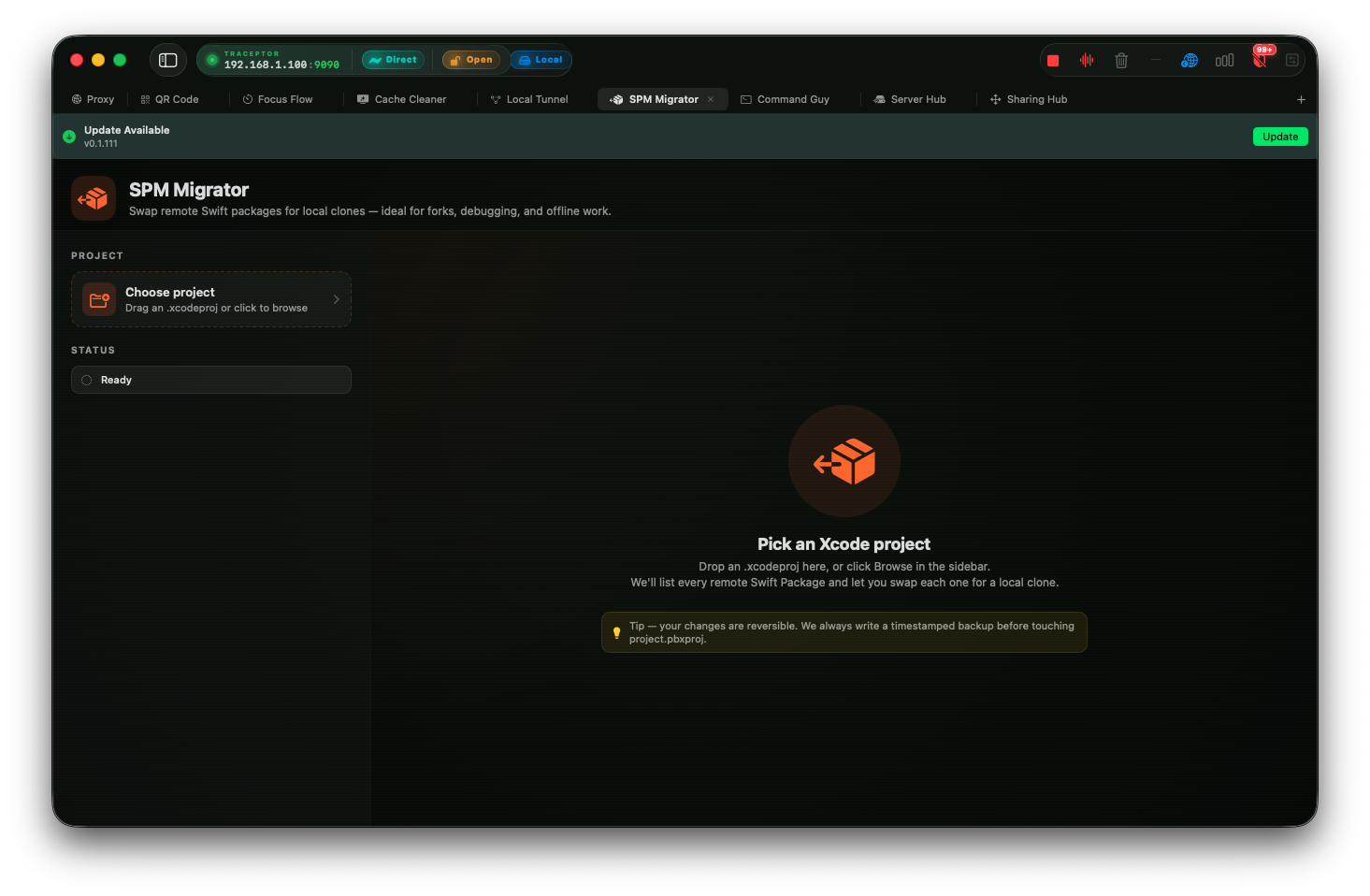
The usual workflow for debugging a Swift Package dependency goes like this: clone the repo, add it as a local package in Xcode, wrestle with the project.pbxprojdiff, forget to switch back before the PR, and repeat next time. SPM Migrator automates the tedious middle part — the rewrite of the pbxproj — so you can flip between remote and local in seconds rather than minutes.
SPM Migrator is a tab inside Traceptor’s Developer Toolbox. It reads your .xcodeproj, shows you every remote Swift Package dependency, and rewrites the ones you toggle to XCLocalSwiftPackageReferenceentries pointing at folders on your disk — with a timestamped backup of the original file written before any change is made.
When you actually need this
- Debugging a forked package— you’ve made a fix in a fork and want to test it in your app before publishing a tagged release. Pointing Xcode at the local clone is faster than cutting a beta tag.
- Working offline— on a plane or in a building with a proxy that blocks GitHub. Xcode can’t resolve remote packages; a local reference resolves immediately.
- Iterating on a package you own — making changes to a library and the app that uses it simultaneously. Local references mean Xcode picks up your changes on the next build without any version bump or tag.
- Investigating a bug in a dependency — add print statements or breakpoints inside the package source. With a remote reference the package source is read-only; with a local reference you can edit it freely.
How it works
1. Open your project
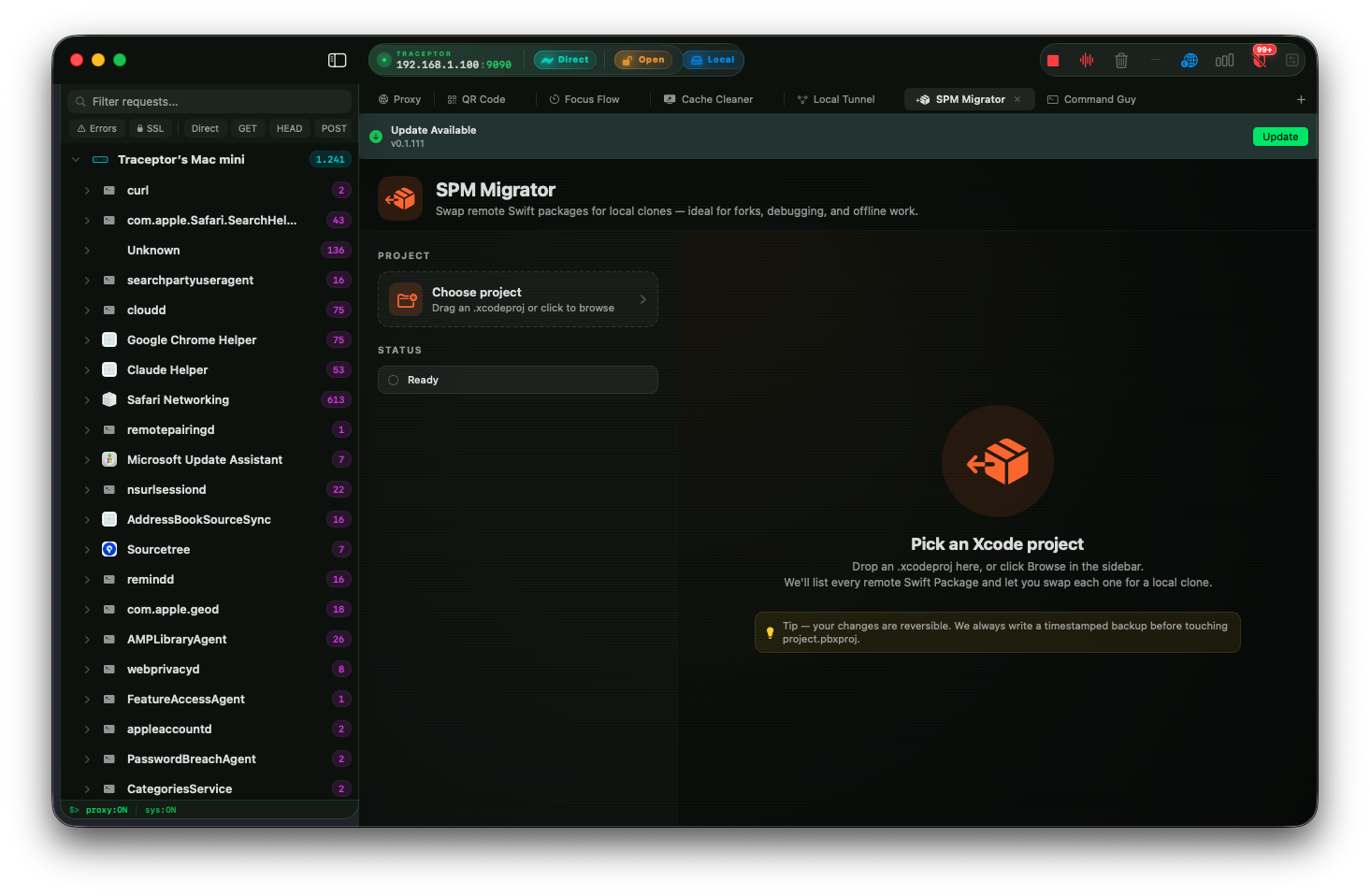
Drop an .xcodeproj onto the SPM Migrator view, or click Browse in the sidebar to pick one. You can also drop a folder that contains an .xcodeprojand the tool finds it automatically. The last six projects you’ve opened are saved in a Recents list so you can reopen them without browsing.
Once opened, SPM Migrator parses the project.pbxproj and splits the results into two sections:
- Remote packages — every
XCRemoteSwiftPackageReferenceentry, shown with its name, repository host (e.g.github.com/pointfreeco), and version requirement (from 1.2.0,exact 2.0.1,branch main,rev a3f1c8d2) - Already local — every
XCLocalSwiftPackageReferencealready in the project, shown with its relative path and aLOCALbadge
2. Auto-match existing clones
Hit Auto-match in the toolbar and SPM Migrator searches your disk for local clones whose name and Package.swift file match each remote dependency. It checks:
- The sibling directory of your project and its parent
- A
Packages/orLocalPackages/subfolder next to the project - Common development roots:
~/dev,~/Source,~/Code,~/Projects,~/Workspace,~/Documents/Projects,~/Documents/Source
When a match is found, the toggle is turned on and the path is pre-filled. The status icon on each row tells you exactly what was found: a green checkmark means the folder exists and contains a Package.swift; an orange indicator means the folder exists but is missing the manifest; a red warning means the path doesn’t exist at all.
3. Toggle and configure individually
For any package Auto-match didn’t find, toggle it on manually and either type a path directly or click Browseto open a folder picker. The path field expands inline below the package row when the toggle is on, and collapses when it’s off.
4. Apply the migration
The Apply bar at the bottom shows how many migrations are queued. Click Apply Migration and SPM Migrator:
- Writes a timestamped backup of the original
project.pbxprojalongside it — filename format:project.pbxproj.spm-migrator-backup-YYYYMMDD-HHmmss - Rewrites each selected
XCRemoteSwiftPackageReferenceblock to anXCLocalSwiftPackageReferencewith the relative path you specified, keeping the same UUID so existing product dependencies in the project don’t break - Updates every comment in the file that referenced the old type (e.g. in the
packageReferencesarray and inXCSwiftPackageProductDependencyentries)
Folders that don’t exist on disk are skipped with a warning rather than aborting the whole migration, so a partially-cloned workspace doesn’t block the packages you do have locally.
Reopen in Xcode to pick up the change
project.pbxproj fresh and will switch to the local clone. The build will use your local source from that point on.5. Revert with one click
After a successful Apply, the sidebar shows a Last apply card with the backup filename and a Revert from backup button. Click it and SPM Migrator reads the backup, writes it back to project.pbxproj, and rescans. The project is back to its original remote references exactly as they were.
Saved configs
If you switch between local and remote regularly on the same project, save a named config with Save Config. A config stores the project path and the local path mapping for every package you had toggled on. Load it later from the sidebar Saved configssection with the play button — the project reopens, the toggles and paths are restored, and you’re one Apply away from the same local setup.
Configs are per-project. If you open a different project, the saved configs for it appear separately. Deleting a config removes it from the list but doesn’t touch the project file itself.
What it doesn’t do
SPM Migrator rewrites the project.pbxproj. It does not:
- Clone the package repository for you — you need the local clone to already exist on disk
- Modify
Package.swiftin the local package — the package must be a valid Swift Package already - Handle workspace-level (
.xcworkspace) setups that reference multiple.xcodeprojfiles — point it at the specific project that owns the dependency
The backup is your safety net
project.pbxproj manually — the backup is plain text and always alongside the original.Keep reading